How To Setup Microsoft Outlook With My Email
This Page Contains information about How To Setup Microsoft Outlook With My Email By web hosting in category Tutorial and Guides with 5 Replies. [652], Last Updated: Sun Jul 05, 2020
web hosting
Fri Sep 25, 2009
5 Comments
493 Visits
this tutorial will show you how to setup your microsoft outlook setting to retrieve your emails with outlook from our server
now provide the following:
Your Name: this is the name your recipients will receive on your emails
E-mail address: enter the email adress you created in the control panel
User Name: this is the username you created (example: web1_test)
Password: this is the password you provided when you created the email account in your control panel
Incoming Mail server (pop3): this is the address of your server
Outgoing Mail Server (smtp) this will be the same as your pop3
select "remember password"
notice: be sure not to select "log on using secure password authentication (SPA) this is not necessary.
next click on the "next" button
then click on the finish button.. thats it
step 1
the first step is to start your outlook.step 2
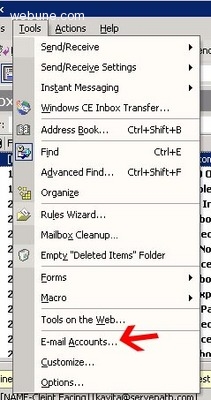
under the "Tools" tab, select "email-accounts"step 3
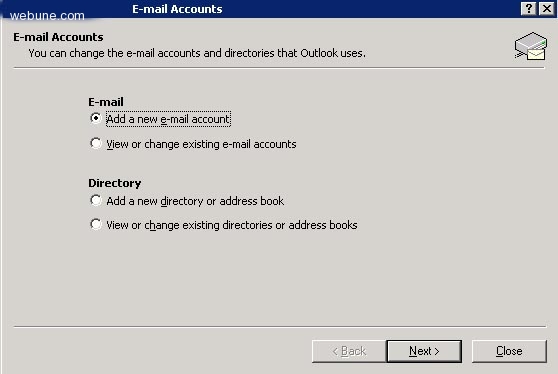
select "add a new e-mail account and click on "next" buttonstep 4
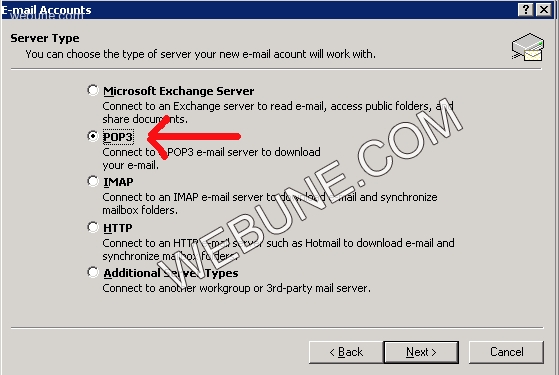
next select pop3 from the liststep 5
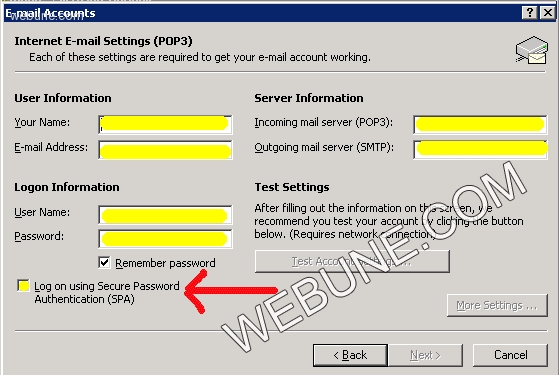
now provide the following:
Your Name: this is the name your recipients will receive on your emails
E-mail address: enter the email adress you created in the control panel
User Name: this is the username you created (example: web1_test)
Password: this is the password you provided when you created the email account in your control panel
Incoming Mail server (pop3): this is the address of your server
Outgoing Mail Server (smtp) this will be the same as your pop3
select "remember password"
notice: be sure not to select "log on using secure password authentication (SPA) this is not necessary.
next click on the "next" button
then click on the finish button.. thats it
aouts
Wed Apr 09, 2008
yes thank you,
dom3
Wed Apr 09, 2008
it worked great for me
https://www.webune.com/forums/how-to-setup-microsoft-outlook-with-my-email.html
https://www.webune.com/forums/how-to-setup-microsoft-outlook-with-my-email.html
alid
Wed Apr 09, 2008
step 3
select "add a new e-mail account and click on "next" button
select "add a new e-mail account and click on "next" button
alik
Wed Apr 09, 2008
i like it
MalloryPaige
Wed Apr 09, 2008
very useful totorial